Feedback on a board usually happens somewhere else. Someone takes a screenshot, pastes it into a chat, and writes “the second card from the left”. By the time anyone reads it, the card has moved, and the conversation is in one place while the work is in another.
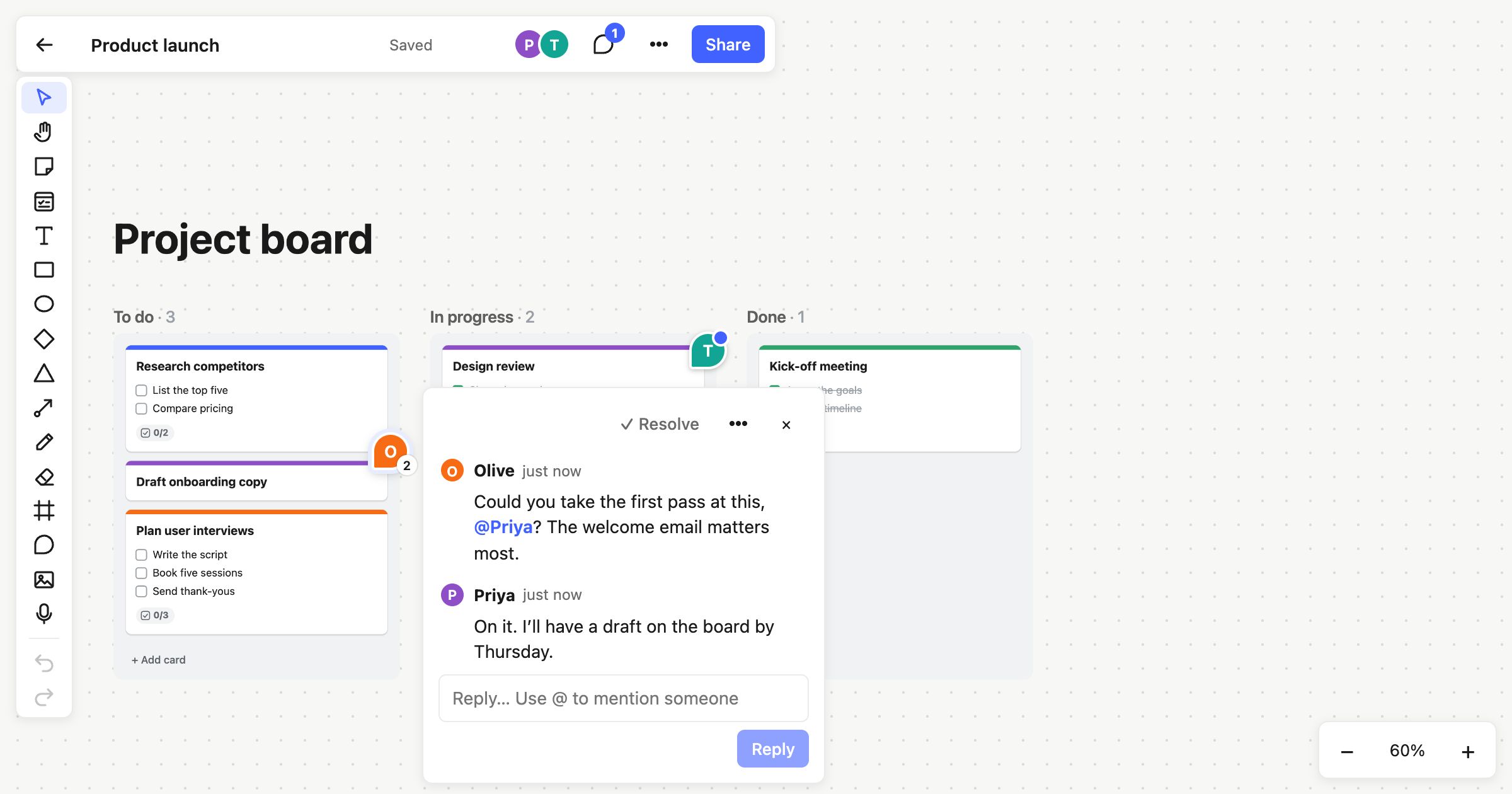
Atomic Lab now has comments, pinned to the board itself.
Pin it where it belongs
Press Shift+C, or pick the speech bubble in the toolbar, then click the thing you want to talk about. Write your comment and press Enter.
The pin sticks to whatever you clicked: a sticky note, a card, a shape or a frame. Move the card to another column and its comments go with it. Click an empty part of the board and the pin stays right where you put it. You can drag a pin somewhere else at any time.
Conversations, not just notes
Each pin is a thread. Reply to it, edit or delete what you wrote, and when the question’s been answered, press Resolve. Resolved threads leave the board, so it stays tidy, but they’re still in the comments list if you need them again.
The comments button at the top of the board lists every thread, latest first, and shows how many you haven’t read. A pin with something new on it has a blue dot. Open a card and you’ll see the threads on it there too, with a button to start another.
Bring someone in with @
Type @ in a comment and pick a name from the people who can see the board.
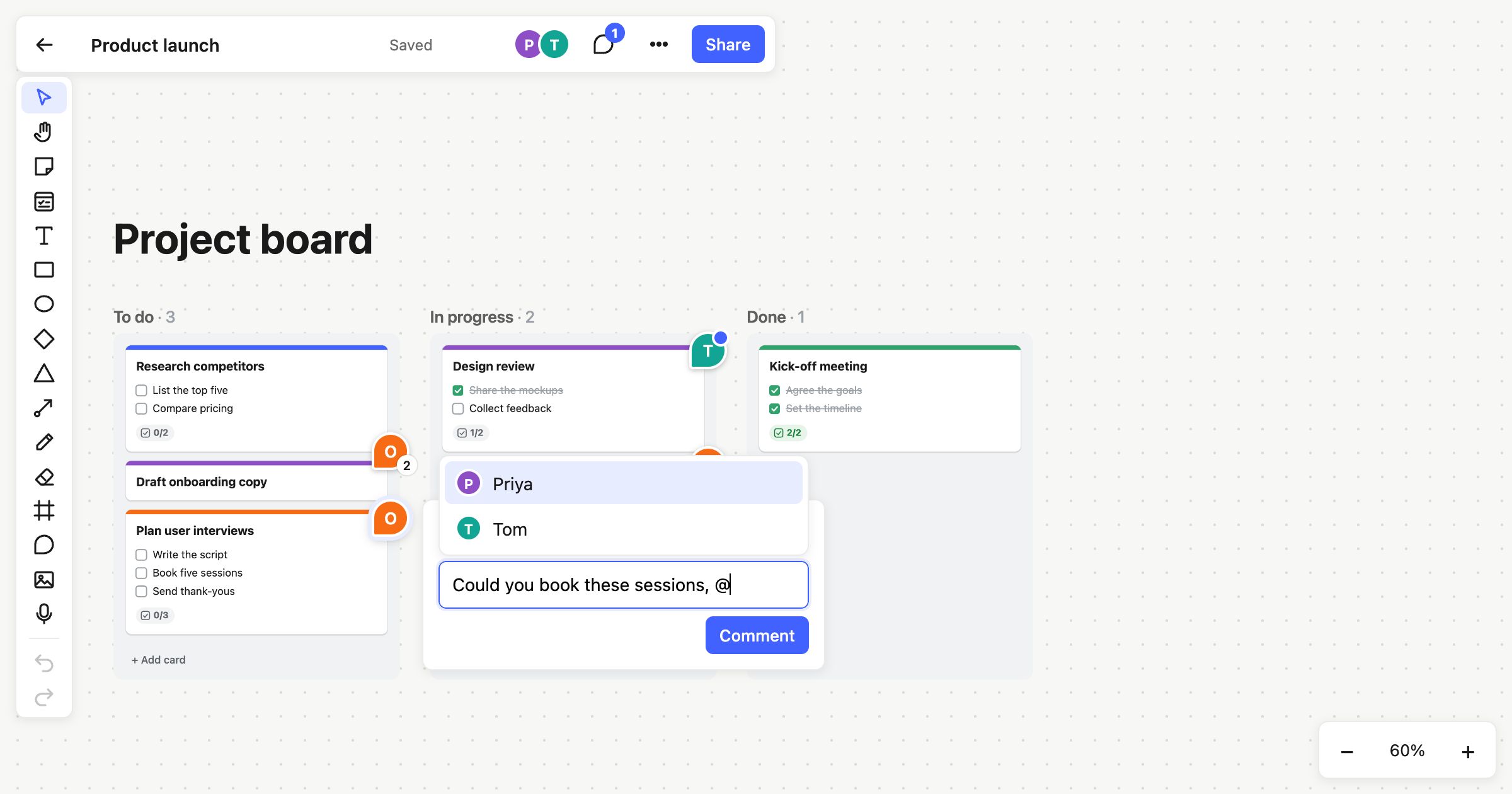
They’ll hear about it by email, but not one email per comment. Atomic Lab waits about ten minutes, then sends one email with everything since, and leaves out anything they’ve already read on the board. People also hear about replies in threads they’ve commented in, and about cards assigned to them.
Each kind of email can be switched off on the account page, and every one has an unsubscribe link.
Feedback without paying for seats
Anyone who can open a board can comment on it, including people who can only view it.
On the Free plan only you edit, but you can still invite people as guests to see a board, and now they can comment on it too. A client, a manager or a friend can leave their thoughts right on the work, and nobody pays for a seat.
Kept among the people you work with
Comments are for the people on the board. If you publish a board to the web, visitors to the public link see the board, but never its comments. Comments aren’t part of exports or version history either.
Getting started
- Open a board and press Shift+C.
- Click a sticky note, a card, or anywhere on the board, and type. Use @ to bring someone in.
- Press Enter to post. Reply as the conversation goes on, and resolve the thread when it’s done.
Comments are part of every plan, including Free.