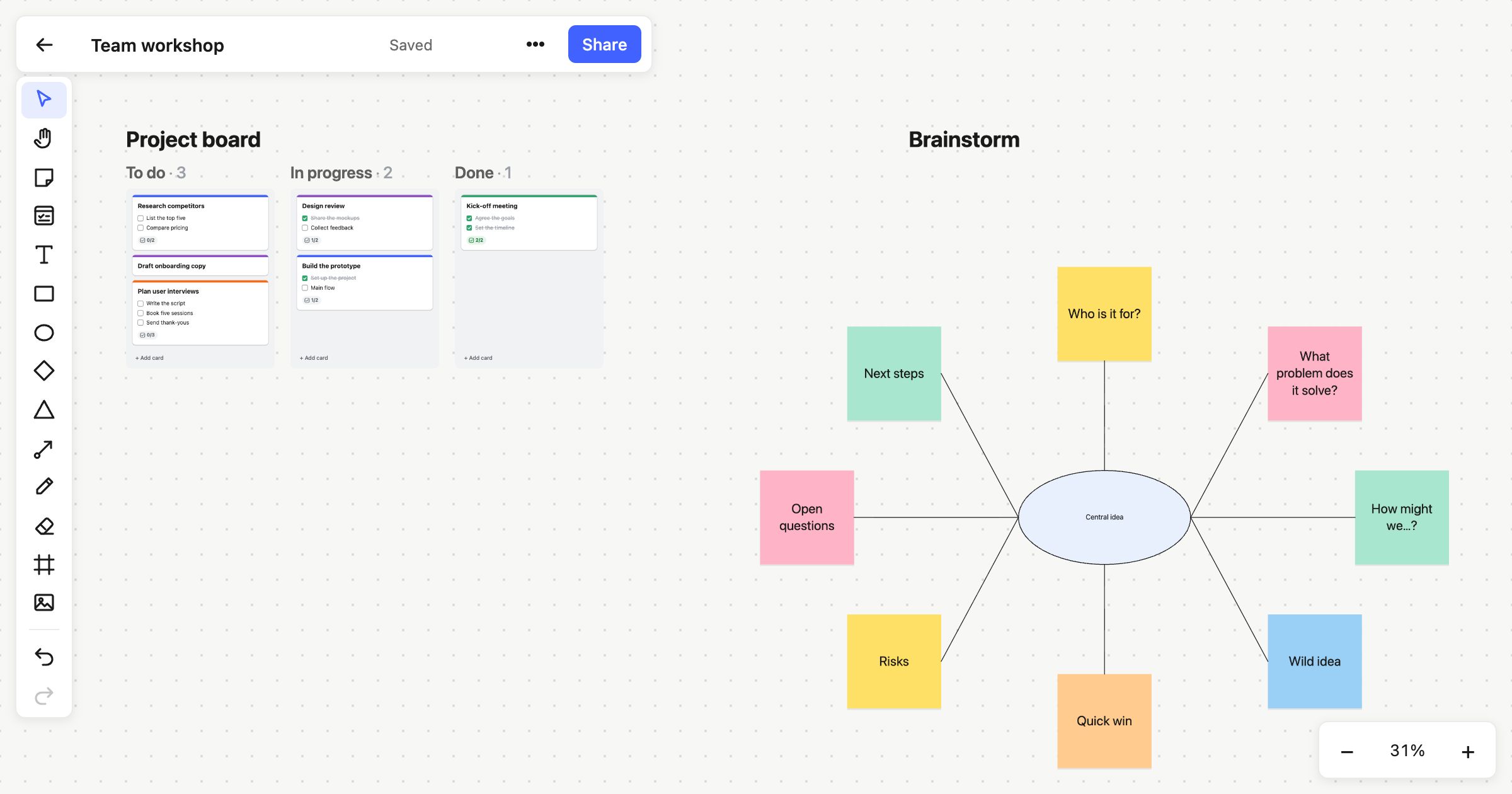
Most teams keep two tools for the same work. A whiteboard is where the ideas happen: the workshop, the sketch of the flow, the sticky notes everyone threw up in the first ten minutes. Then a tracker is where the work lives, and the ideas end up as a screenshot pasted into a ticket. The context gets lost on the way.
Atomic Lab puts both on one board. Its Kanban columns keep cards as tidy as a tracker would, and everything around them stays as free as a whiteboard.
Cards that are more than sticky notes
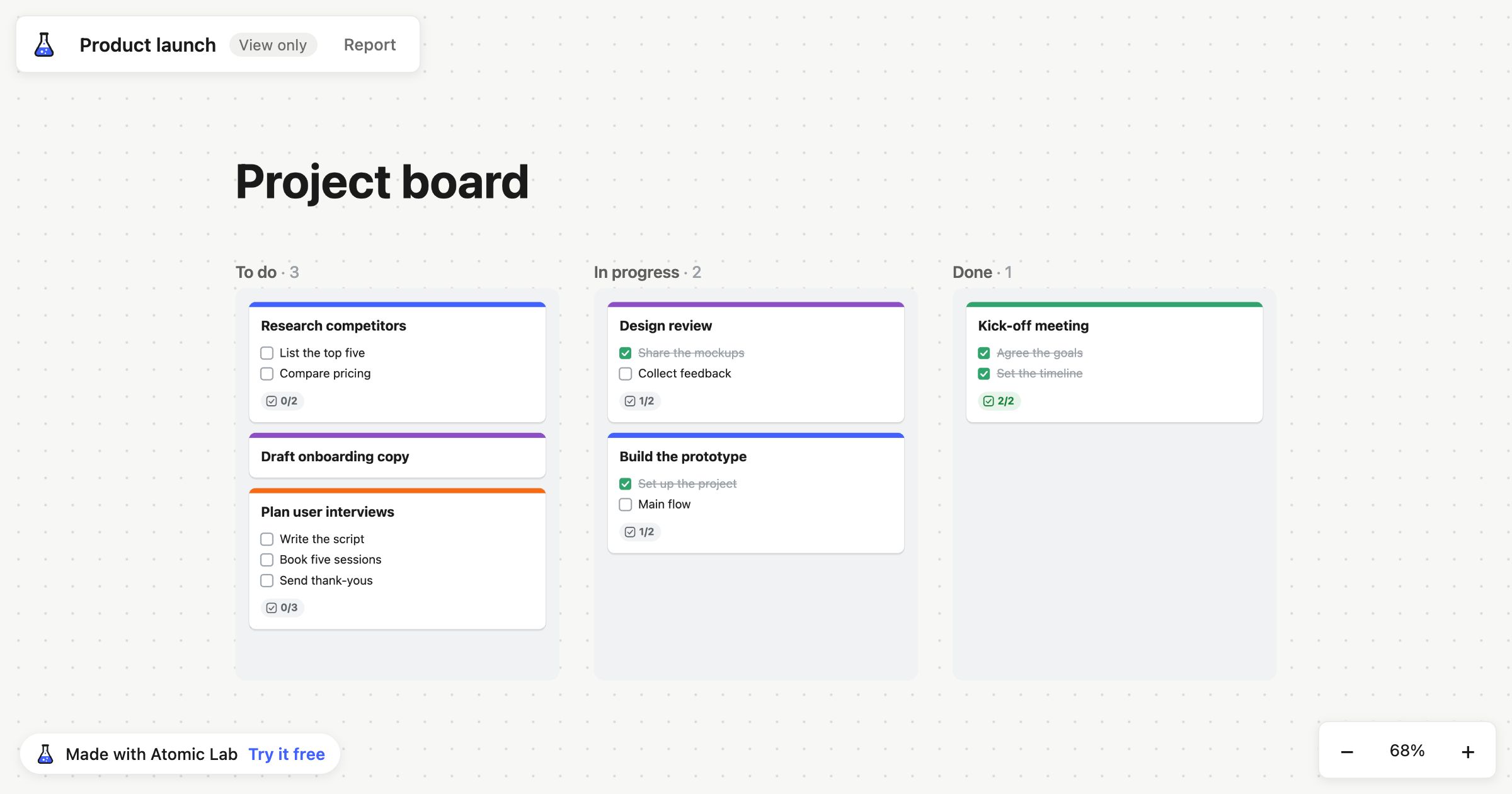
A sticky note is perfect for an idea. Work needs a little more, so Atomic Lab has cards:
- A title and a note, for the what and the why.
- A checklist, with its progress shown on the card, so “2/5” tells you where things are at a glance.
- People, so everyone can see who’s on it.
- A due date, which turns red when it’s passed.
Press C and click anywhere to make one, or double-click a card to open it.
Columns that tidy themselves
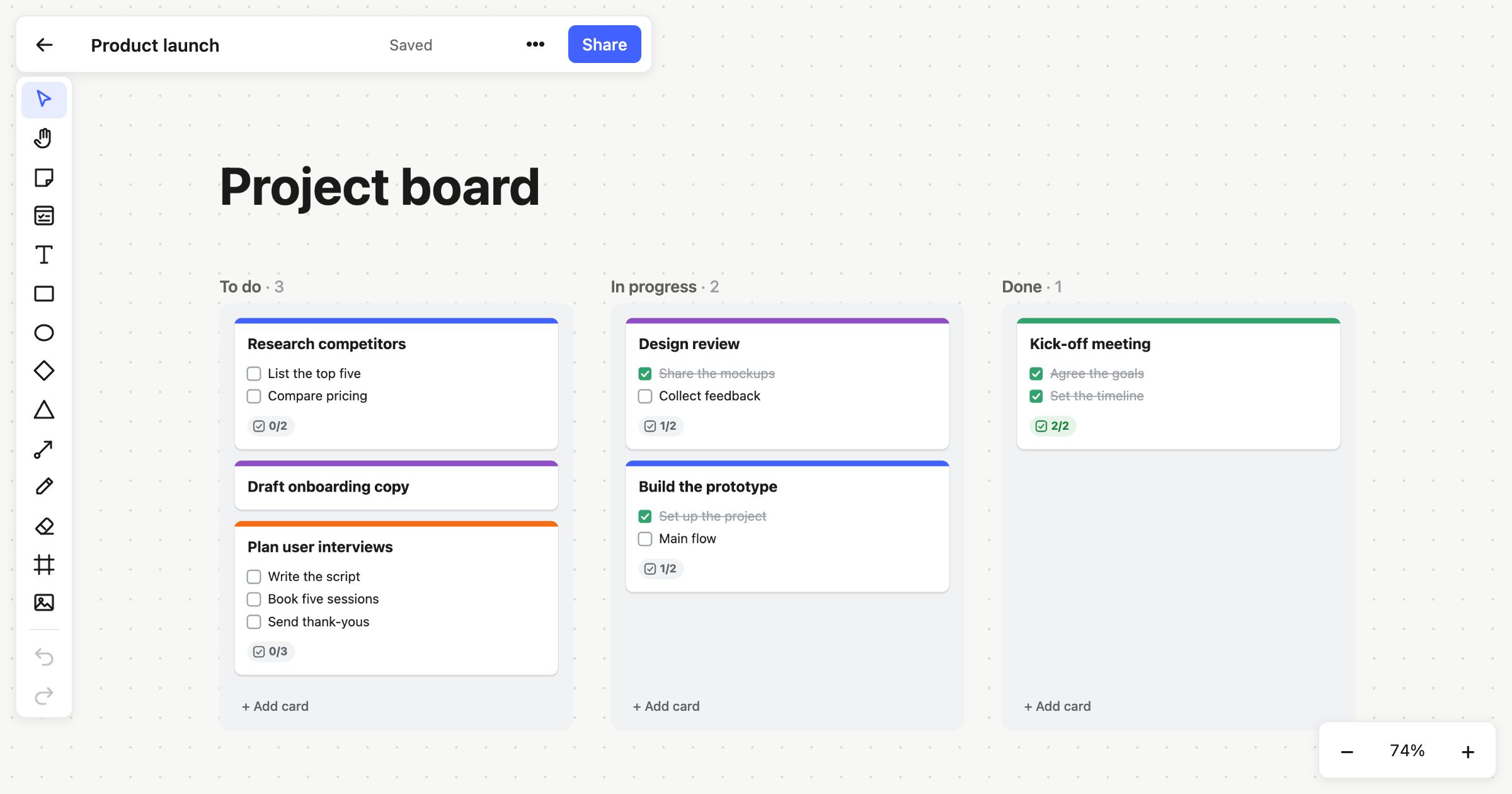
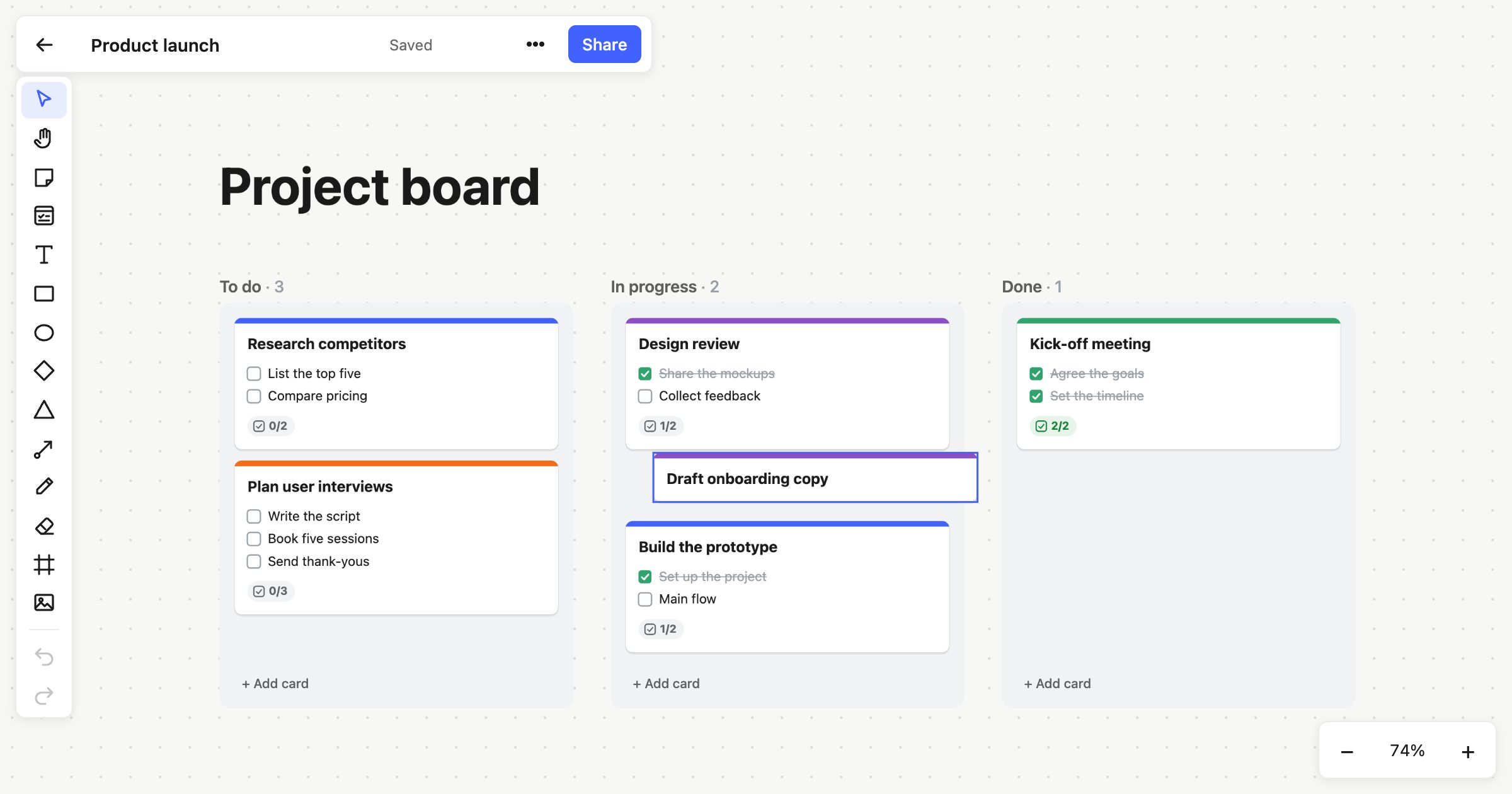
Drop a card into a column and it snaps into place, at the column’s full width, in line with the cards around it. As you drag a card over a column, the cards part to show exactly where it will land, and the column you took it from closes up behind it.
Columns grow as cards are added, and columns standing side by side share one height, so a row of them reads as a single board. Each column’s title shows how many cards it holds, so a crowded “In progress” is hard to miss.
Moving a card to another column is how its status changes. There’s no separate field to update, and no form to fill in.
Move work from the keyboard
When you’re triaging a long column, the mouse gets tedious. Select one or more cards and:
- Alt+↑ and Alt+↓ move them up and down their column.
- Alt+← and Alt+→ move them to the end of the column next door.
Each move is a single step you can undo.
Still a whiteboard
The columns only tidy the cards inside them. Around them, the board is as free as ever: sketch the user flow above the backlog, link a card to the diagram it came from with a connector, leave sticky notes in the margins. Notes and shapes you put over a column stay where you put them, rather than being swept into the stack.
That’s the point of doing Kanban on a whiteboard. The plan sits right next to the thinking that produced it.
Working together
Everyone on a board sees changes as they happen, along with each other’s cursors. If two people drop cards into the same column at the same moment, both cards land where they were dropped, and everyone sees the same column.
Getting started
- Create a board and choose the Kanban template. It starts with three columns: To do, In progress and Done, with a few example cards.
- Double-click a column’s title to rename it.
- Right-click a column and choose Add column to the right for another stage. The columns after it move along to make room.
- Use + Add card at the bottom of a column to add work.
Already have a board with frames you use as columns? Right-click a frame and choose Stack cards as a column.
Kanban columns are part of every plan, including Free.